
Interface controls and starting layout
Four primary buttons sit in the lower-left corner of the screen: SHOP, BACKPACK, INDEX, and DAILY REWARDS. The top edge includes navigation shortcuts marked Spawn (F) and Home (Q). On the right side, the shop displays purchase cards for STARTER PACK at 19 Robux and DOUBLE YOUR POWER at 39 Robux.
At the bottom of the screen, two resource bars track your stats. The left bar features a pickaxe icon alongside a number where readings of 540, 608, 709, 729, and 919 were observed as gameplay progressed in the guide video. The right bar tracks your cash balance. Both bars include a plus button next to x1 and x2 multiplier indicators.
Mining rocks and managing your three-slot backpack
When you approach rock deposits in the starter room, your inventory is constrained by your bag size. The backpack bar at the bottom displays 0/3 when empty and increments toward 3/3 as you break rocks.
In the guide video, players mine starter rocks until the backpack reaches 3/3 before moving toward processing. Hauling a single rock to a machine and running back triples travel time for zero extra profit. Always mine until the bar reads 3/3 before leaving the rock pile.
Operating the cutting machine and reading the timers
Raw stones cannot be sold immediately. You must place each rock onto a cutting machine to reveal its internal material. Once a stone sits on the cutter, a countdown appears directly above the rock. In the guide video, remaining countdown values of 12s, 21s, and 24s were observed on stones mid-cycle. These numbers represent the remaining seconds on that active cut.
When the counter reaches zero, the screen displays a notification reading Cutting complete! Collect your stone from the machine, while the machine interface shows the prompt Ready! (E). Cut materials do not return to your inventory automatically. Stand in front of the machine and press E to retrieve your processed stone. If you leave a stone sitting on the platform, that cutter remains occupied and cannot process new rocks.
Cashing out at the sell station
Take your collected stones to the sell platform, marked by the interaction prompt [E] Sell Rocks. Opening the sell terminal displays an interface with options labeled Nothing to sell, SELECTED ITEMS, Click stones to select, SELL ALL, SELL SELECTED, SELECTED TOTAL, and ALL ITEMS TOTAL.
The panel in the footage looks like this: the left column is the item area, the right column shows what is selected, and the two big buttons are the whole sale. Frame from the guide video at 1:36.
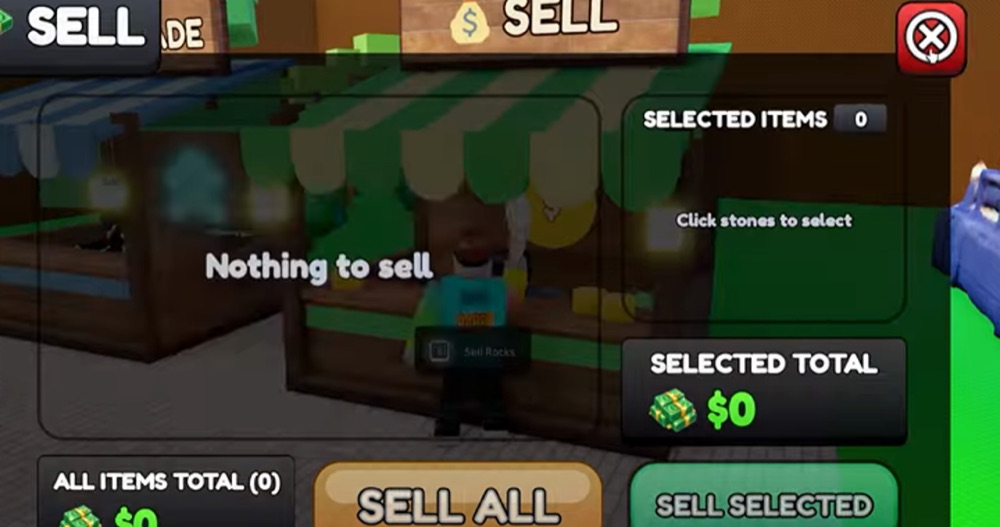
If you walk to the platform while carrying uncut raw rocks, the screen displays Nothing to sell. Pressing SELL ALL exchanges all processed stones in your bag for in-game currency. Directly beside the sell terminal stands an UPGRADE station. Having both stations adjacent lets you cash in your load and invest earnings without walking across the floor.
Where to put your first upgrade
Our read is that your opening cash should go toward cutting speed before pickaxe power. Mining speed feels slow at the start, but hauling three rocks takes only a few swings. The real delay occurs when you stand waiting for the cutter timer to tick down from 24s or 21s.
The shop panel is where a Robux decision actually happens. The bundle card shows four 2x icons plus a Sight level and a bag slot, priced at 249 with 319 crossed out. Frame from the guide video at 0:24.
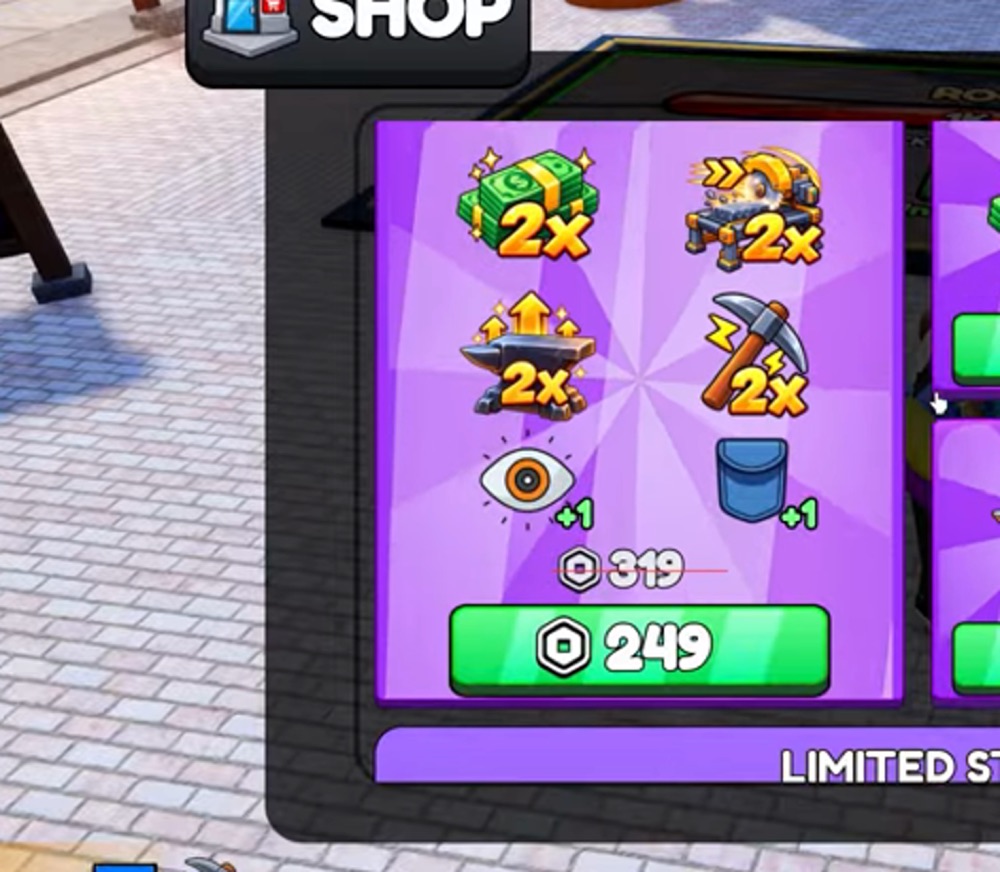
Improving machine speed reduces your downtime at processing stations. Once machines process stones quickly, cash flow stabilizes. You can review the complete financial progression in the upgrade order.
When to unlock the 100$ and 1K$ passageways
Along the perimeter of the starting room, two locked passageways restrict movement: Locked - 100$ and Locked - 1K$. These barriers block access to deeper rooms containing rarer rock distributions.
Opening Locked - 100$ is worth doing as soon as your first two or three cutting batches clear the sell counter. The fee is modest, and opening that passage gives you access to Room 2. The ceiling sign in Room 2 lists Common rocks at 50%, Uncommon at 50%, and Nova Prism at 0.1%, with room total stats marked 8.95K / 8.95K.
Locked - 1K$ requires a larger reserve. Opening the 1,000 dollar passage makes sense only after machine timers are shortened and your bankroll easily absorbs the cost. Room 3 ceiling signs show Common at 35%, Uncommon at 50%, Rare at 15%, and Nova Prism at 0.1%, with room totals marked 80.1K / 80.1K.
Starter pickaxes and currency differences
The official developer product list offers pickaxes directly for Robux through the store interface:
| Pickaxe Name | Robux Price | In-Game Cash Price | Power Rating |
|---|---|---|---|
| Copper Pickaxe | 70 Robux | No public source publishes that | No public source publishes that |
| Iron Pickaxe | 80 Robux | No public source publishes that | No public source publishes that |
| Golden Pickaxe | 92 Robux | No public source publishes that | No public source publishes that |
These Robux developer products sit alongside standard in-game progression. In-game cash prices for these pickaxes are not documented in any public source, and no published data confirms exact Power numbers. For a full breakdown of the 41 pickaxe tiers sold through the store, consult the pickaxe catalog.
Redeeming ground ticket codes
Unlike many simulator titles, Cut a Rock has no universal promo codes. You will not find static codes published on social channels or wikis. Codes appear as physical tickets that drop onto the floor.
Any player in the server can pick up a ticket, and once collected, that numeric code remains valid for only five minutes. When you locate a ticket, open the ticket icon in the top right corner of the screen, enter the numbers, and press enter. For details on spawn rules and shared server mechanics, check our guide to ticket codes.